How to Check Laptop Battery Health on Windows 11 and Mac
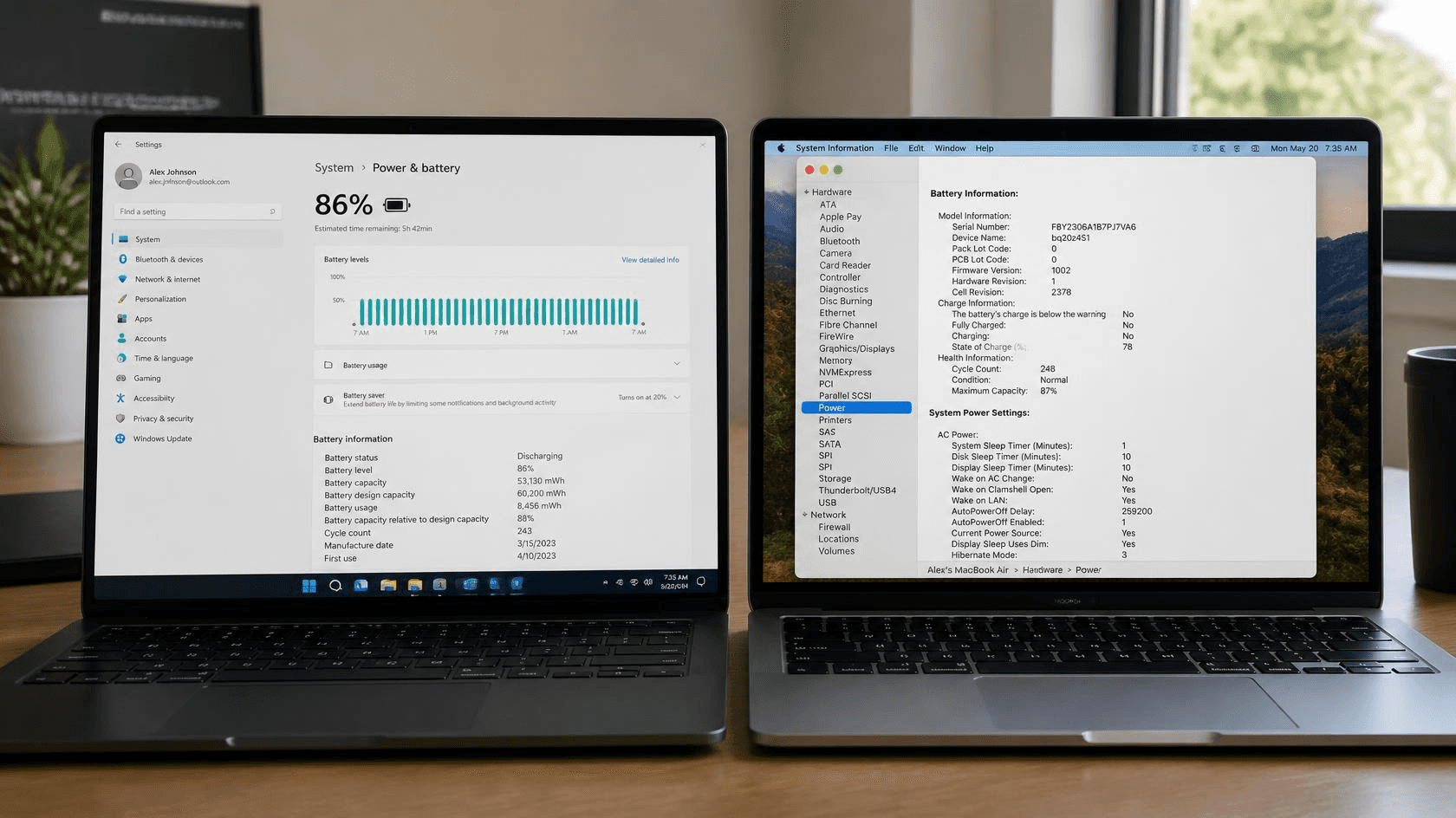
If your laptop no longer lasts through a full day of classes or work, a laptop battery health check can help you find out whether its battery capacity has declined. The charge percentage on your screen shows how much power is currently available, not how much energy the battery can hold compared with when it was new.
Windows 11 and macOS offer built-in ways to check battery condition without installing extra software. This guide explains how to generate or view your laptop's battery health information, understand key results such as design capacity and full charge capacity where available, and recognise when further troubleshooting or a battery replacement may be worth considering. If you are in Perth, it also helps you understand when a professional assessment may be useful.
How to Check Laptop Battery Health on Windows 11
Windows 11 includes a built-in command that generates a detailed battery report. This report shows information such as design capacity, full charge capacity and recent usage. Microsoft describes this feature on its official support page, Caring for your battery in Windows.
Step by step instructions
- Open Windows Terminal or Command Prompt as administrator.
- Press the Windows key, type Command Prompt.
- Right click Command Prompt and choose Run as administrator, then confirm.
- Run the battery report command.
- At the command prompt, type:
powercfg /batteryreport - Press Enter.
- At the command prompt, type:
- Note the file location.
- Windows will display a message such as: Battery life report saved to file path
C:\WINDOWS\system32\battery-report.html - The exact path can vary by device and Windows version.
- Windows will display a message such as: Battery life report saved to file path
- Open the report in your browser.
- Open File Explorer and go to the folder shown in the message.
- Double click the HTML file to open it in your default web browser.
Understanding the Windows battery report
In the report, look for the Installed batteries section. Key fields may include:
- Design Capacity: The battery's original rated capacity in milliwatt hours (mWh).
- Full Charge Capacity: The amount of energy the battery can currently hold when fully charged.
- Cycle Count: Some laptops show this, others do not. It depends on the hardware and manufacturer.
You can estimate an approximate battery health percentage using this simple calculation:
Battery health percentage (approximate) = Full Charge Capacity ÷ Design Capacity × 100
For example, if the report shows:
- Design Capacity: 50,000 mWh
- Full Charge Capacity: 40,000 mWh
Then the approximate health is:
- 40,000 ÷ 50,000 × 100 = 80%
This means the battery can currently hold approximately 80% of its original design capacity, indicating that it has lost around 20% of its initial energy storage capacity. However, this figure is an estimate, not a definitive measure of battery health. The information displayed, including report locations, available fields and accuracy, can vary depending on your Windows version, laptop manufacturer and battery hardware.
The report may also include Recent usage and Battery usage sections, which provide additional insight into how the battery performs during everyday use. These sections can show when the laptop was active, when it was connected to a power source, and how its charge level changed over time. Reviewing this information alongside the design and full charge capacity figures can help you identify potential battery degradation and understand whether the battery is still meeting your needs.
How to Check Battery Health on a MacBook
MacOS provides a straightforward way to view battery condition and, on many models, cycle count. Apple's support pages explain how to determine battery cycle count for Mac laptops and how to interpret battery health warnings.
Check Battery Health in System Settings
- Click the Apple menu in the top left corner.
- Choose System Settings (or System Preferences on older macOS).
- Select Battery.
- Look for Battery Health or Battery Condition.
You may see one of the following statuses:
- Normal: The battery is functioning normally.
- Service Recommended: The battery's ability to hold charge is less than when it was new, or it is not functioning normally. Apple notes you can continue using the Mac, but service may improve your experience.
On some older Macs or macOS versions, Battery Health may not appear in System Settings. In that case, you can press and hold the Option key while clicking the battery icon in the menu bar. This may show status such as Replace Soon, Replace Now or Service Battery.
Source: Apple Support, If you see battery 'Service Recommended' on your Mac laptop.
Check Cycle Count in System Information
- Hold the Option key and click the Apple menu.
- Choose System Information.
- In the left panel, under Hardware, select Power.
- In the right panel, find Battery Information.
- Look for Cycle Count and Condition.
A charge cycle means using 100% of the battery's capacity, but not necessarily in one go. For example, using 50% one day, recharging, then using 50% the next day counts as one cycle. Different Mac models have different maximum cycle counts, commonly 300, 500 or 1000 cycles depending on the model and year.
Cycle count alone does not determine whether a battery needs replacement. Battery condition, age, runtime and any service warnings should also be considered. Menu names and available information can vary by macOS version and MacBook model.
Source: Apple Support, Determine battery cycle count for Mac laptops.
How to Read Your Laptop Battery Health Report
Whether you are using Windows or macOS, several key figures help you understand battery condition.
- Design Capacity: The original capacity when the battery was new.
- Full Charge Capacity: The current maximum capacity when fully charged.
- Battery Health Percentage: An approximate comparison between current full charge capacity and original design capacity, when those figures are available.
- Cycle Count: The number of equivalent full charge cycles the battery has accumulated.
- Battery Condition: The status reported by the operating system or manufacturer, such as Normal or Service Recommended.
Over time, lithium ion batteries naturally lose capacity. For example, a laptop that originally held 50,000 mWh might, after a few years, hold only 38,000 mWh when fully charged. That represents a noticeable reduction in runtime, even though the battery still charges to 100%.
Battery capacity percentages are estimates. Acceptable battery condition varies by device, age, usage and manufacturer guidance. There is no single percentage that automatically means a battery must be replaced.
Signs Your Laptop Battery May Need Replacing
Several practical warning signs suggest a battery may be wearing out:
- Battery life becomes noticeably shorter than it used to be.
- The charge percentage drops quickly or unexpectedly.
- The laptop shuts down even though the battery indicator shows remaining charge.
- The battery takes unusually long to charge or fails to charge at all.
- The operating system shows a warning recommending battery service.
- The battery appears swollen, the trackpad is raised, or the laptop case looks distorted.
Charging problems are not always caused by a failing battery. A faulty charger, damaged charging port, software issue or other hardware fault can also prevent a laptop from charging correctly.
If the battery appears swollen, stop using the laptop and disconnect the charger if you can do so safely. Do not press, puncture or attempt to remove the battery yourself. Arrange a professional assessment as soon as possible. Australian product safety guidance warns that swollen, leaking or overheating lithium-ion batteries can pose serious fire and safety risks.
How to Improve Laptop Battery Health and Lifespan
Good charging and usage habits can help slow battery degradation and maintain battery performance over time. Microsoft and Apple provide battery care recommendations, although the best settings can vary depending on your laptop model and how you use it.
To help maintain your laptop battery's health:
- Avoid excessive heat. Keep the laptop well ventilated and avoid using it on soft surfaces, such as beds or cushions, that can block the cooling vents.
- Use a compatible charger. Choose the original charger or a reputable, manufacturer-approved alternative that meets your laptop's power requirements.
- Enable battery optimisation features. If your laptop supports a charge limit or battery conservation mode, consider using it for everyday tasks. Some models allow charging to be capped at around 80% to reduce prolonged time at a high charge level.
- Reduce unnecessary power consumption. Lower screen brightness, enable appropriate power-saving settings, and close applications or browser tabs you no longer need.
- Avoid extreme temperatures. Do not leave your laptop in a hot car, particularly during Australian summer conditions, as excessive heat can accelerate battery wear.
- Expect gradual battery wear. Lithium-ion batteries naturally lose capacity as they age and go through charge cycles, even when properly maintained.
Avoid outdated advice that recommends regularly draining a modern laptop battery to 0% before recharging. Instead, follow your laptop manufacturer's battery care guidance. Microsoft recommends keeping lithium-ion batteries within a moderate charge range, such as 20% to 80%, when practical, to help reduce battery ageing. However, charging recommendations and available optimisation features can vary by device.
Source: Microsoft Support, Caring for your battery in Windows.
When Should You Replace Your Laptop Battery?
Deciding whether to replace a laptop battery depends on its condition, how well it performs during everyday use and the cost of repair. Consider the following factors:
- Battery life: Does the battery drain quickly, even during normal tasks?
- Everyday performance: Can the laptop still meet your work, study or personal needs without frequent charging?
- Battery health indicators: Does the battery report show reduced capacity, or does the laptop display a battery service warning?
- Overall laptop condition: Is the laptop otherwise working well, with no major performance or hardware issues?
- Repair costs: Is replacing the battery a practical option compared with the laptop's age, condition and cost of buying a replacement?
There is no single battery health percentage or charge cycle count that determines when every laptop battery needs replacing. Recommendations vary by manufacturer and model. If the battery report does not match your experience, or the laptop continues to have charging problems, unexpected shutdowns or other power issues, a professional diagnosis can help identify the cause.
If you're in Perth and your laptop battery is draining quickly, refusing to charge, displaying a service warning or causing unexpected shutdowns, DV Computers can assess the device and recommend suitable repair options. Visit our laptop repair services in Perth page to learn more, or contact DV Computers to discuss your laptop battery problem.
Should You Check Battery Health Before Buying a Refurbished Laptop?
A battery health check is useful when buying a used or refurbished laptop. It helps you understand how much capacity remains and whether the battery is likely to meet your needs.
When evaluating a refurbished laptop:
- Review battery capacity and cycle count where supported.
- Check battery runtime under normal use, not just the reported percentage.
- Look for any battery warnings in Windows or macOS.
- Inspect for physical damage, swelling or a distorted case.
- Confirm warranty coverage and ask the seller about battery condition.
- Understand that cycle count and reported capacity do not guarantee a specific amount of remaining runtime.
DV Computers offers a range of tested refurbished laptops. You can view the current refurbished laptops available from DV Computers and ask about battery condition for specific models. A thorough check helps you avoid surprises and choose a laptop that will last.
Frequently Asked Questions
How do I check my laptop battery health on Windows 11?
Open Command Prompt as administrator, run powercfg /batteryreport, then open the generated HTML file in your browser. Review Design Capacity, Full Charge Capacity and usage sections. Microsoft provides official instructions for this process.
How do I check MacBook battery health?
Open the Apple menu, go to System Settings, then Battery, and view Battery Health or Battery Condition. To see cycle count, hold Option, open the Apple menu, choose System Information, then select Power. Apple explains these steps in its support documentation.
What is a good laptop battery health percentage?
Higher remaining capacity generally means less capacity loss. Many laptops still perform well above 80% health. Below 60% to 70%, runtime often becomes noticeably limited, but there is no universal replacement threshold for every model.
How many battery cycles are normal for a laptop?
Cycle limits vary by manufacturer and model. Many modern MacBooks are rated for around 1000 cycles, while older models may be rated for 300 or 500. Check your specific model's specifications for the maximum cycle count.
Why does my laptop battery drain quickly even when battery health looks good?
Possible causes include background applications, high screen brightness, aggressive power settings, heat, software issues, charger problems or limitations in the battery report itself. Real world testing under normal conditions is important.
Can I check laptop battery health without installing software?
Yes. Windows 11 includes the powercfg /batteryreport command, and macOS includes Battery Health and System Information. These built in tools are sufficient for most users.
When should I have my laptop battery checked in Perth?
Seek professional help for persistent battery issues, service warnings, charging faults or unexpected shutdowns. If the battery is swollen, stop using and charging the laptop. DV Computers can assess the problem and recommend suitable repair or replacement options. Product Safety Australia provides further lithium-ion battery safety guidance.
Conclusion
Checking laptop battery health on Windows 11 and MacBook is straightforward using built-in tools. On Windows, generate a battery report with powercfg /batteryreport to review battery capacity and usage. On a MacBook, check Battery Health in System Settings and the cycle count in System Information.
Use these results alongside actual battery life, device condition and manufacturer recommendations. If your laptop battery drains quickly, displays service warnings or causes power issues, DV Computers can assess the problem and recommend suitable repair options in Perth.